 ROS Index
Repository Summary
| Description | |
| Checkout URI | https://github.com/nvidia-ai-iot/isaac_demo.git |
| VCS Type | git |
| VCS Version | main |
| Last Updated | 2023-08-19 |
| Dev Status | UNKNOWN |
| Released | UNRELEASED |
| Contributing |
Help Wanted (-)
Good First Issues (-) Pull Requests to Review (-) |
Packages
| Name | Version |
|---|---|
| carter_description | 0.1.0 |
| isaac_demo | 0.1.0 |
README
isaac_demo
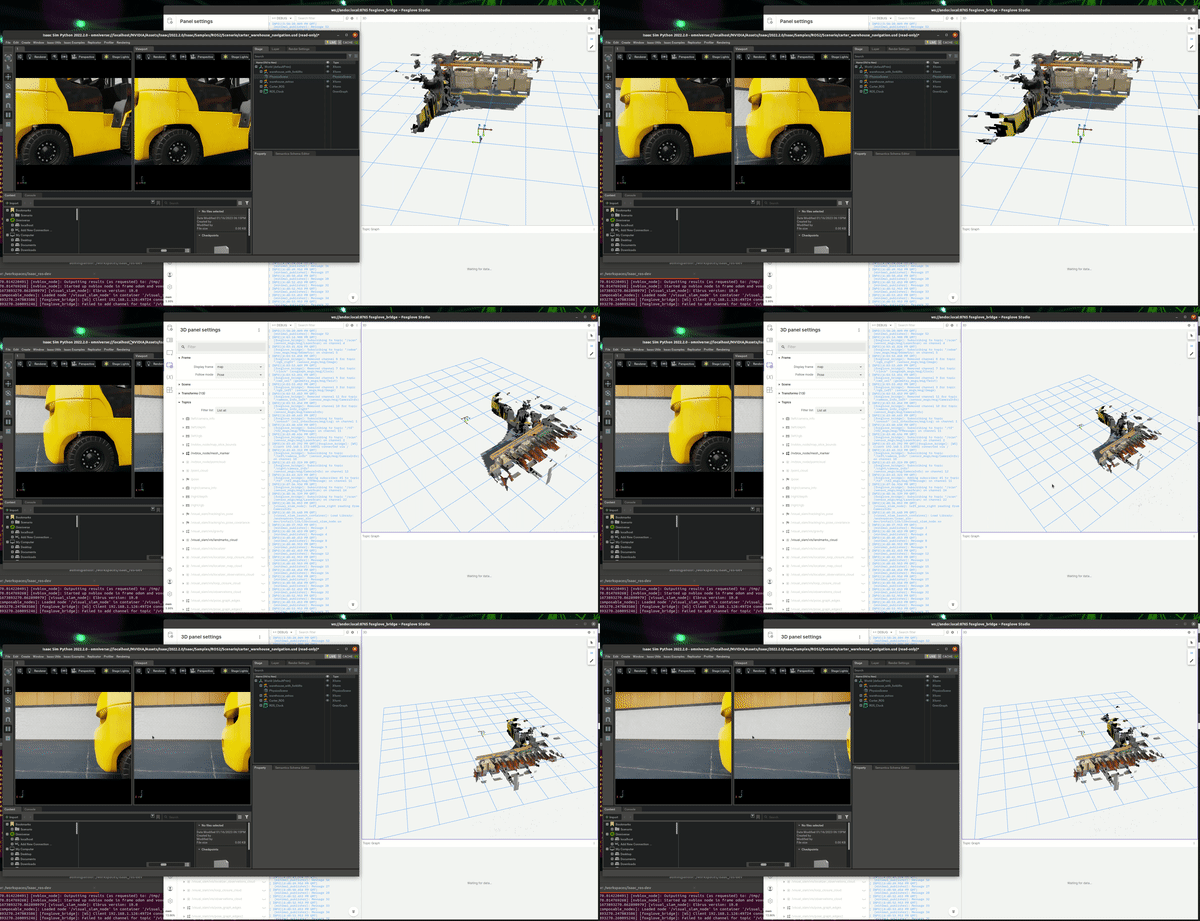
A combined set of demo working with Isaac SIM on a workstation and Isaac ROS on a NVIDIA Jetson AGX Orin
Hardware required
Workstation:
- Internet connection
- x86/64 machine
- Install Ubuntu 20.04
- NVIDIA Graphic card with RTX
- Display
- Keyboard and Mouse
NVIDIA Jetson:
- NVIDIA Jetson AGX Orin
- Jetpack 5.1.2
Tools:
- Router
- eth cables
Setup hardware
Before to start check you have all requirements and connect the driver following this image
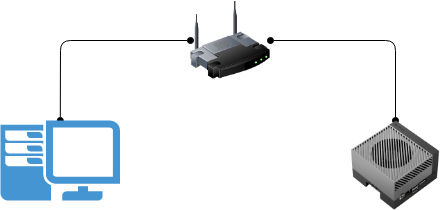
It is preferable to connect workstation and the NVIDIA Jetson AGX Orin with a lan cable and not use WiFi.
Install
There are two steps to follow, Install FoxGlove and Install Isaac ROS
Follow:
- Install on Jetson
- Install on workstation
Install on NVIDIA Jetson Orin
Install on your NVIDIA Jetson Orin Jetpack 5+
After installation save IP address and hostname
Connect remotely
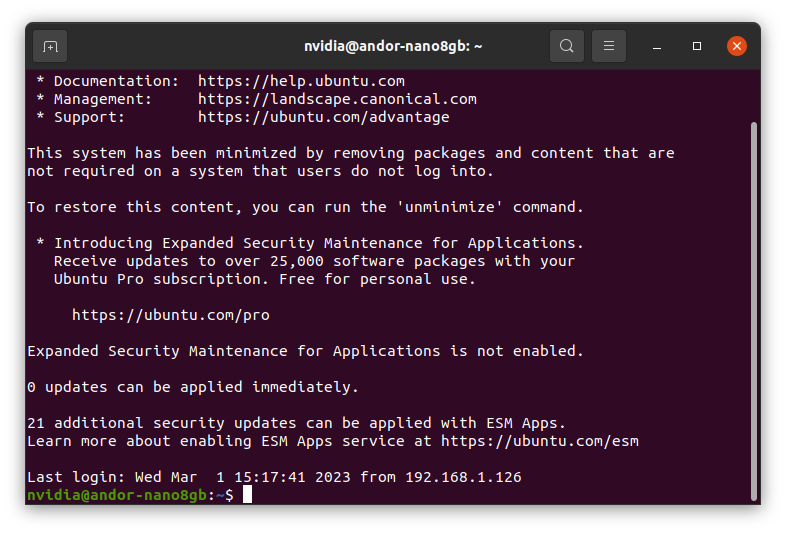
In this section you connect to your NVIDIA Jetson with a ssh connection, open a terminal an write
ssh <IP or hostname.local>
where IP is the of NVIDIA Jetson or hostname is the hostname of your board.
If you are connected the output from the terminal is:
Install Isaac Demo
Clone this repository and move to repository folder
git clone https://github.com/rbonghi/isaac_demo.git
cd isaac_demo
Add docker group to your user
sudo usermod -aG docker $USER && newgrp docker
Set the default nvidia runtime
You’re going to be building containers, you need to set Docker’s default-runtime to nvidia, so that the NVCC compiler and GPU are available during docker build operations. Add "default-runtime": "nvidia" to your /etc/docker/daemon.json configuration file before attempting to build the containers:
{
    "default-runtime": "nvidia",
    "runtimes": {
        "nvidia": {
            "path": "nvidia-container-runtime",
            "runtimeArgs": []
        }
    }
}
Then restart the Docker service, or reboot your system before proceeding:
sudo systemctl restart docker
File truncated at 100 lines see the full file
CONTRIBUTING
Repository Summary
| Description | |
| Checkout URI | https://github.com/nvidia-ai-iot/isaac_demo.git |
| VCS Type | git |
| VCS Version | main |
| Last Updated | 2023-08-19 |
| Dev Status | UNKNOWN |
| Released | UNRELEASED |
| Contributing |
Help Wanted (-)
Good First Issues (-) Pull Requests to Review (-) |
Packages
| Name | Version |
|---|---|
| carter_description | 0.1.0 |
| isaac_demo | 0.1.0 |
README
isaac_demo
A combined set of demo working with Isaac SIM on a workstation and Isaac ROS on a NVIDIA Jetson AGX Orin
Hardware required
Workstation:
- Internet connection
- x86/64 machine
- Install Ubuntu 20.04
- NVIDIA Graphic card with RTX
- Display
- Keyboard and Mouse
NVIDIA Jetson:
- NVIDIA Jetson AGX Orin
- Jetpack 5.1.2
Tools:
- Router
- eth cables
Setup hardware
Before to start check you have all requirements and connect the driver following this image
It is preferable to connect workstation and the NVIDIA Jetson AGX Orin with a lan cable and not use WiFi.
Install
There are two steps to follow, Install FoxGlove and Install Isaac ROS
Follow:
- Install on Jetson
- Install on workstation
Install on NVIDIA Jetson Orin
Install on your NVIDIA Jetson Orin Jetpack 5+
After installation save IP address and hostname
Connect remotely
In this section you connect to your NVIDIA Jetson with a ssh connection, open a terminal an write
ssh <IP or hostname.local>
where IP is the of NVIDIA Jetson or hostname is the hostname of your board.
If you are connected the output from the terminal is:
Install Isaac Demo
Clone this repository and move to repository folder
git clone https://github.com/rbonghi/isaac_demo.git
cd isaac_demo
Add docker group to your user
sudo usermod -aG docker $USER && newgrp docker
Set the default nvidia runtime
You’re going to be building containers, you need to set Docker’s default-runtime to nvidia, so that the NVCC compiler and GPU are available during docker build operations. Add "default-runtime": "nvidia" to your /etc/docker/daemon.json configuration file before attempting to build the containers:
{
    "default-runtime": "nvidia",
    "runtimes": {
        "nvidia": {
            "path": "nvidia-container-runtime",
            "runtimeArgs": []
        }
    }
}
Then restart the Docker service, or reboot your system before proceeding:
sudo systemctl restart docker
File truncated at 100 lines see the full file
CONTRIBUTING
Repository Summary
| Description | |
| Checkout URI | https://github.com/nvidia-ai-iot/isaac_demo.git |
| VCS Type | git |
| VCS Version | main |
| Last Updated | 2023-08-19 |
| Dev Status | UNKNOWN |
| Released | UNRELEASED |
| Contributing |
Help Wanted (-)
Good First Issues (-) Pull Requests to Review (-) |
Packages
| Name | Version |
|---|---|
| carter_description | 0.1.0 |
| isaac_demo | 0.1.0 |
README
isaac_demo
A combined set of demo working with Isaac SIM on a workstation and Isaac ROS on a NVIDIA Jetson AGX Orin
Hardware required
Workstation:
- Internet connection
- x86/64 machine
- Install Ubuntu 20.04
- NVIDIA Graphic card with RTX
- Display
- Keyboard and Mouse
NVIDIA Jetson:
- NVIDIA Jetson AGX Orin
- Jetpack 5.1.2
Tools:
- Router
- eth cables
Setup hardware
Before to start check you have all requirements and connect the driver following this image
It is preferable to connect workstation and the NVIDIA Jetson AGX Orin with a lan cable and not use WiFi.
Install
There are two steps to follow, Install FoxGlove and Install Isaac ROS
Follow:
- Install on Jetson
- Install on workstation
Install on NVIDIA Jetson Orin
Install on your NVIDIA Jetson Orin Jetpack 5+
After installation save IP address and hostname
Connect remotely
In this section you connect to your NVIDIA Jetson with a ssh connection, open a terminal an write
ssh <IP or hostname.local>
where IP is the of NVIDIA Jetson or hostname is the hostname of your board.
If you are connected the output from the terminal is:
Install Isaac Demo
Clone this repository and move to repository folder
git clone https://github.com/rbonghi/isaac_demo.git
cd isaac_demo
Add docker group to your user
sudo usermod -aG docker $USER && newgrp docker
Set the default nvidia runtime
You’re going to be building containers, you need to set Docker’s default-runtime to nvidia, so that the NVCC compiler and GPU are available during docker build operations. Add "default-runtime": "nvidia" to your /etc/docker/daemon.json configuration file before attempting to build the containers:
{
    "default-runtime": "nvidia",
    "runtimes": {
        "nvidia": {
            "path": "nvidia-container-runtime",
            "runtimeArgs": []
        }
    }
}
Then restart the Docker service, or reboot your system before proceeding:
sudo systemctl restart docker
File truncated at 100 lines see the full file
CONTRIBUTING
Repository Summary
| Description | |
| Checkout URI | https://github.com/nvidia-ai-iot/isaac_demo.git |
| VCS Type | git |
| VCS Version | main |
| Last Updated | 2023-08-19 |
| Dev Status | UNKNOWN |
| Released | UNRELEASED |
| Contributing |
Help Wanted (-)
Good First Issues (-) Pull Requests to Review (-) |
Packages
| Name | Version |
|---|---|
| carter_description | 0.1.0 |
| isaac_demo | 0.1.0 |
README
isaac_demo
A combined set of demo working with Isaac SIM on a workstation and Isaac ROS on a NVIDIA Jetson AGX Orin
Hardware required
Workstation:
- Internet connection
- x86/64 machine
- Install Ubuntu 20.04
- NVIDIA Graphic card with RTX
- Display
- Keyboard and Mouse
NVIDIA Jetson:
- NVIDIA Jetson AGX Orin
- Jetpack 5.1.2
Tools:
- Router
- eth cables
Setup hardware
Before to start check you have all requirements and connect the driver following this image
It is preferable to connect workstation and the NVIDIA Jetson AGX Orin with a lan cable and not use WiFi.
Install
There are two steps to follow, Install FoxGlove and Install Isaac ROS
Follow:
- Install on Jetson
- Install on workstation
Install on NVIDIA Jetson Orin
Install on your NVIDIA Jetson Orin Jetpack 5+
After installation save IP address and hostname
Connect remotely
In this section you connect to your NVIDIA Jetson with a ssh connection, open a terminal an write
ssh <IP or hostname.local>
where IP is the of NVIDIA Jetson or hostname is the hostname of your board.
If you are connected the output from the terminal is:
Install Isaac Demo
Clone this repository and move to repository folder
git clone https://github.com/rbonghi/isaac_demo.git
cd isaac_demo
Add docker group to your user
sudo usermod -aG docker $USER && newgrp docker
Set the default nvidia runtime
You’re going to be building containers, you need to set Docker’s default-runtime to nvidia, so that the NVCC compiler and GPU are available during docker build operations. Add "default-runtime": "nvidia" to your /etc/docker/daemon.json configuration file before attempting to build the containers:
{
    "default-runtime": "nvidia",
    "runtimes": {
        "nvidia": {
            "path": "nvidia-container-runtime",
            "runtimeArgs": []
        }
    }
}
Then restart the Docker service, or reboot your system before proceeding:
sudo systemctl restart docker
File truncated at 100 lines see the full file
CONTRIBUTING
Repository Summary
| Description | |
| Checkout URI | https://github.com/nvidia-ai-iot/isaac_demo.git |
| VCS Type | git |
| VCS Version | main |
| Last Updated | 2023-08-19 |
| Dev Status | UNKNOWN |
| Released | UNRELEASED |
| Contributing |
Help Wanted (-)
Good First Issues (-) Pull Requests to Review (-) |
Packages
| Name | Version |
|---|---|
| carter_description | 0.1.0 |
| isaac_demo | 0.1.0 |
README
isaac_demo
A combined set of demo working with Isaac SIM on a workstation and Isaac ROS on a NVIDIA Jetson AGX Orin
Hardware required
Workstation:
- Internet connection
- x86/64 machine
- Install Ubuntu 20.04
- NVIDIA Graphic card with RTX
- Display
- Keyboard and Mouse
NVIDIA Jetson:
- NVIDIA Jetson AGX Orin
- Jetpack 5.1.2
Tools:
- Router
- eth cables
Setup hardware
Before to start check you have all requirements and connect the driver following this image
It is preferable to connect workstation and the NVIDIA Jetson AGX Orin with a lan cable and not use WiFi.
Install
There are two steps to follow, Install FoxGlove and Install Isaac ROS
Follow:
- Install on Jetson
- Install on workstation
Install on NVIDIA Jetson Orin
Install on your NVIDIA Jetson Orin Jetpack 5+
After installation save IP address and hostname
Connect remotely
In this section you connect to your NVIDIA Jetson with a ssh connection, open a terminal an write
ssh <IP or hostname.local>
where IP is the of NVIDIA Jetson or hostname is the hostname of your board.
If you are connected the output from the terminal is:
Install Isaac Demo
Clone this repository and move to repository folder
git clone https://github.com/rbonghi/isaac_demo.git
cd isaac_demo
Add docker group to your user
sudo usermod -aG docker $USER && newgrp docker
Set the default nvidia runtime
You’re going to be building containers, you need to set Docker’s default-runtime to nvidia, so that the NVCC compiler and GPU are available during docker build operations. Add "default-runtime": "nvidia" to your /etc/docker/daemon.json configuration file before attempting to build the containers:
{
    "default-runtime": "nvidia",
    "runtimes": {
        "nvidia": {
            "path": "nvidia-container-runtime",
            "runtimeArgs": []
        }
    }
}
Then restart the Docker service, or reboot your system before proceeding:
sudo systemctl restart docker
File truncated at 100 lines see the full file
CONTRIBUTING
Repository Summary
| Description | |
| Checkout URI | https://github.com/nvidia-ai-iot/isaac_demo.git |
| VCS Type | git |
| VCS Version | main |
| Last Updated | 2023-08-19 |
| Dev Status | UNKNOWN |
| Released | UNRELEASED |
| Contributing |
Help Wanted (-)
Good First Issues (-) Pull Requests to Review (-) |
Packages
| Name | Version |
|---|---|
| carter_description | 0.1.0 |
| isaac_demo | 0.1.0 |
README
isaac_demo
A combined set of demo working with Isaac SIM on a workstation and Isaac ROS on a NVIDIA Jetson AGX Orin
Hardware required
Workstation:
- Internet connection
- x86/64 machine
- Install Ubuntu 20.04
- NVIDIA Graphic card with RTX
- Display
- Keyboard and Mouse
NVIDIA Jetson:
- NVIDIA Jetson AGX Orin
- Jetpack 5.1.2
Tools:
- Router
- eth cables
Setup hardware
Before to start check you have all requirements and connect the driver following this image
It is preferable to connect workstation and the NVIDIA Jetson AGX Orin with a lan cable and not use WiFi.
Install
There are two steps to follow, Install FoxGlove and Install Isaac ROS
Follow:
- Install on Jetson
- Install on workstation
Install on NVIDIA Jetson Orin
Install on your NVIDIA Jetson Orin Jetpack 5+
After installation save IP address and hostname
Connect remotely
In this section you connect to your NVIDIA Jetson with a ssh connection, open a terminal an write
ssh <IP or hostname.local>
where IP is the of NVIDIA Jetson or hostname is the hostname of your board.
If you are connected the output from the terminal is:
Install Isaac Demo
Clone this repository and move to repository folder
git clone https://github.com/rbonghi/isaac_demo.git
cd isaac_demo
Add docker group to your user
sudo usermod -aG docker $USER && newgrp docker
Set the default nvidia runtime
You’re going to be building containers, you need to set Docker’s default-runtime to nvidia, so that the NVCC compiler and GPU are available during docker build operations. Add "default-runtime": "nvidia" to your /etc/docker/daemon.json configuration file before attempting to build the containers:
{
    "default-runtime": "nvidia",
    "runtimes": {
        "nvidia": {
            "path": "nvidia-container-runtime",
            "runtimeArgs": []
        }
    }
}
Then restart the Docker service, or reboot your system before proceeding:
sudo systemctl restart docker
File truncated at 100 lines see the full file
CONTRIBUTING
Repository Summary
| Description | |
| Checkout URI | https://github.com/nvidia-ai-iot/isaac_demo.git |
| VCS Type | git |
| VCS Version | main |
| Last Updated | 2023-08-19 |
| Dev Status | UNKNOWN |
| Released | UNRELEASED |
| Contributing |
Help Wanted (-)
Good First Issues (-) Pull Requests to Review (-) |
Packages
| Name | Version |
|---|---|
| carter_description | 0.1.0 |
| isaac_demo | 0.1.0 |
README
isaac_demo
A combined set of demo working with Isaac SIM on a workstation and Isaac ROS on a NVIDIA Jetson AGX Orin
Hardware required
Workstation:
- Internet connection
- x86/64 machine
- Install Ubuntu 20.04
- NVIDIA Graphic card with RTX
- Display
- Keyboard and Mouse
NVIDIA Jetson:
- NVIDIA Jetson AGX Orin
- Jetpack 5.1.2
Tools:
- Router
- eth cables
Setup hardware
Before to start check you have all requirements and connect the driver following this image
It is preferable to connect workstation and the NVIDIA Jetson AGX Orin with a lan cable and not use WiFi.
Install
There are two steps to follow, Install FoxGlove and Install Isaac ROS
Follow:
- Install on Jetson
- Install on workstation
Install on NVIDIA Jetson Orin
Install on your NVIDIA Jetson Orin Jetpack 5+
After installation save IP address and hostname
Connect remotely
In this section you connect to your NVIDIA Jetson with a ssh connection, open a terminal an write
ssh <IP or hostname.local>
where IP is the of NVIDIA Jetson or hostname is the hostname of your board.
If you are connected the output from the terminal is:
Install Isaac Demo
Clone this repository and move to repository folder
git clone https://github.com/rbonghi/isaac_demo.git
cd isaac_demo
Add docker group to your user
sudo usermod -aG docker $USER && newgrp docker
Set the default nvidia runtime
You’re going to be building containers, you need to set Docker’s default-runtime to nvidia, so that the NVCC compiler and GPU are available during docker build operations. Add "default-runtime": "nvidia" to your /etc/docker/daemon.json configuration file before attempting to build the containers:
{
    "default-runtime": "nvidia",
    "runtimes": {
        "nvidia": {
            "path": "nvidia-container-runtime",
            "runtimeArgs": []
        }
    }
}
Then restart the Docker service, or reboot your system before proceeding:
sudo systemctl restart docker
File truncated at 100 lines see the full file
CONTRIBUTING
Repository Summary
| Description | |
| Checkout URI | https://github.com/nvidia-ai-iot/isaac_demo.git |
| VCS Type | git |
| VCS Version | main |
| Last Updated | 2023-08-19 |
| Dev Status | UNKNOWN |
| Released | UNRELEASED |
| Contributing |
Help Wanted (-)
Good First Issues (-) Pull Requests to Review (-) |
Packages
| Name | Version |
|---|---|
| carter_description | 0.1.0 |
| isaac_demo | 0.1.0 |
README
isaac_demo
A combined set of demo working with Isaac SIM on a workstation and Isaac ROS on a NVIDIA Jetson AGX Orin
Hardware required
Workstation:
- Internet connection
- x86/64 machine
- Install Ubuntu 20.04
- NVIDIA Graphic card with RTX
- Display
- Keyboard and Mouse
NVIDIA Jetson:
- NVIDIA Jetson AGX Orin
- Jetpack 5.1.2
Tools:
- Router
- eth cables
Setup hardware
Before to start check you have all requirements and connect the driver following this image
It is preferable to connect workstation and the NVIDIA Jetson AGX Orin with a lan cable and not use WiFi.
Install
There are two steps to follow, Install FoxGlove and Install Isaac ROS
Follow:
- Install on Jetson
- Install on workstation
Install on NVIDIA Jetson Orin
Install on your NVIDIA Jetson Orin Jetpack 5+
After installation save IP address and hostname
Connect remotely
In this section you connect to your NVIDIA Jetson with a ssh connection, open a terminal an write
ssh <IP or hostname.local>
where IP is the of NVIDIA Jetson or hostname is the hostname of your board.
If you are connected the output from the terminal is:
Install Isaac Demo
Clone this repository and move to repository folder
git clone https://github.com/rbonghi/isaac_demo.git
cd isaac_demo
Add docker group to your user
sudo usermod -aG docker $USER && newgrp docker
Set the default nvidia runtime
You’re going to be building containers, you need to set Docker’s default-runtime to nvidia, so that the NVCC compiler and GPU are available during docker build operations. Add "default-runtime": "nvidia" to your /etc/docker/daemon.json configuration file before attempting to build the containers:
{
    "default-runtime": "nvidia",
    "runtimes": {
        "nvidia": {
            "path": "nvidia-container-runtime",
            "runtimeArgs": []
        }
    }
}
Then restart the Docker service, or reboot your system before proceeding:
sudo systemctl restart docker
File truncated at 100 lines see the full file
CONTRIBUTING
Repository Summary
| Description | |
| Checkout URI | https://github.com/nvidia-ai-iot/isaac_demo.git |
| VCS Type | git |
| VCS Version | main |
| Last Updated | 2023-08-19 |
| Dev Status | UNKNOWN |
| Released | UNRELEASED |
| Contributing |
Help Wanted (-)
Good First Issues (-) Pull Requests to Review (-) |
Packages
| Name | Version |
|---|---|
| carter_description | 0.1.0 |
| isaac_demo | 0.1.0 |
README
isaac_demo
A combined set of demo working with Isaac SIM on a workstation and Isaac ROS on a NVIDIA Jetson AGX Orin
Hardware required
Workstation:
- Internet connection
- x86/64 machine
- Install Ubuntu 20.04
- NVIDIA Graphic card with RTX
- Display
- Keyboard and Mouse
NVIDIA Jetson:
- NVIDIA Jetson AGX Orin
- Jetpack 5.1.2
Tools:
- Router
- eth cables
Setup hardware
Before to start check you have all requirements and connect the driver following this image
It is preferable to connect workstation and the NVIDIA Jetson AGX Orin with a lan cable and not use WiFi.
Install
There are two steps to follow, Install FoxGlove and Install Isaac ROS
Follow:
- Install on Jetson
- Install on workstation
Install on NVIDIA Jetson Orin
Install on your NVIDIA Jetson Orin Jetpack 5+
After installation save IP address and hostname
Connect remotely
In this section you connect to your NVIDIA Jetson with a ssh connection, open a terminal an write
ssh <IP or hostname.local>
where IP is the of NVIDIA Jetson or hostname is the hostname of your board.
If you are connected the output from the terminal is:
Install Isaac Demo
Clone this repository and move to repository folder
git clone https://github.com/rbonghi/isaac_demo.git
cd isaac_demo
Add docker group to your user
sudo usermod -aG docker $USER && newgrp docker
Set the default nvidia runtime
You’re going to be building containers, you need to set Docker’s default-runtime to nvidia, so that the NVCC compiler and GPU are available during docker build operations. Add "default-runtime": "nvidia" to your /etc/docker/daemon.json configuration file before attempting to build the containers:
{
    "default-runtime": "nvidia",
    "runtimes": {
        "nvidia": {
            "path": "nvidia-container-runtime",
            "runtimeArgs": []
        }
    }
}
Then restart the Docker service, or reboot your system before proceeding:
sudo systemctl restart docker
File truncated at 100 lines see the full file