 ROS Index

Package Summary
| Version | 0.6.0 |
| License | Apache License 2.0 |
| Build type | AMENT_CMAKE |
| Use | RECOMMENDED |
Repository Summary
| Description | |
| Checkout URI | https://github.com/autowarefoundation/autoware_rviz_plugins.git |
| VCS Type | git |
| VCS Version | main |
| Last Updated | 2026-11-10 |
| Dev Status | DEVELOPED |
| Released | RELEASED |
| Contributing |
Help Wanted (-)
Good First Issues (-) Pull Requests to Review (-) |
Package Description
Maintainers
- Mete Fatih Cırıt
Authors
- Khalil Selyan
autoware_minimap_overlay_rviz_plugin
An RViz overlay that shows a map around the vehicle, with the goal and the route to it.
Purpose
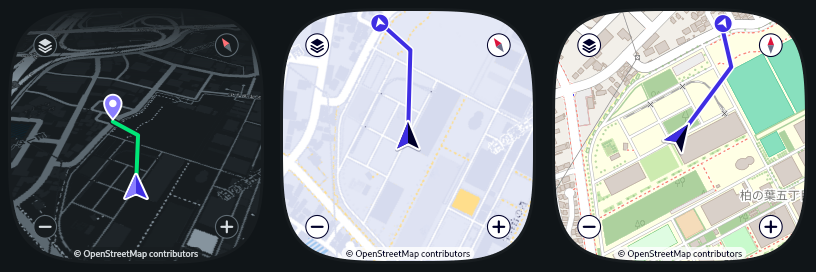
The minimap shows where the vehicle is in the real world while you look at the 3D scene of RViz. It draws these items on map tiles of OpenStreetMap:
- The vehicle, as an arrow that points to its heading
- The goal, as a pin
- The route, as a line from the vehicle to the goal
If the goal is outside the minimap, a marker at the edge of the minimap points to the goal.
Controls on the minimap
You control the minimap with the mouse. The minimap does not pass these mouse actions to the RViz tools. A mouse button that you press outside the minimap stays with the RViz tool until you release it, also above the minimap.
| Control | Action |
|---|---|
| Layers button (top left) | Changes the map style: Navigation Dark, Navigation Light, then OpenStreetMap |
| Compass button (top right) | Changes the view: 3D, Heading Up, then North Up. The red tip points to north. |
- and + buttons (bottom) |
Change the zoom level |
| Mouse wheel | Changes the zoom level |
| Drag with the left or middle button | Moves the map. The minimap then does not follow the vehicle. |
| Recenter button | Shows after you move the map. It moves the map back, to follow the vehicle again |
Inputs / Outputs
Input
| Name | Type | Description |
|---|---|---|
/api/vehicle/kinematics |
autoware_adapi_v1_msgs::msg::VehicleKinematics |
The geographic position and the heading of the vehicle |
/api/routing/route |
autoware_adapi_v1_msgs::msg::Route |
The goal, and the lanelets of the route |
/api/routing/state |
autoware_adapi_v1_msgs::msg::RouteState |
The goal and the route show when a route is set |
/map/vector_map |
autoware_map_msgs::msg::LaneletMapBin |
The centerline of each route lanelet gives the route line |
/map/map_projector_info |
autoware_map_msgs::msg::MapProjectorInfo |
Converts the goal and the route to latitude and longitude |
The plugin has no output topics. It downloads map tiles from the address in the Tile URL property. The default is https://tile.openstreetmap.org.
Parameters
The display has these properties in the Displays panel of RViz.
| Name | Type | Default Value | Description |
|---|---|---|---|
Width |
int | 256 | Width of the minimap in pixels (64 to 1024) |
Height |
int | 256 | Height of the minimap in pixels (64 to 1024) |
Horizontal Anchor |
enum | Left | Left, Center, or Right side of the RViz view |
Vertical Anchor |
enum | Bottom | Top, Center, or Bottom side of the RViz view |
Horizontal Margin |
int | 10 | Horizontal distance from the anchor in pixels |
Vertical Margin |
int | 10 | Vertical distance from the anchor in pixels |
Shape |
enum | Squircle | Squircle (a square with smooth corners), Circle, or Rectangle |
Alpha |
float | 0.6 | Opacity of the minimap (0 to 1) |
Zoom |
int | 17 | Zoom level of the map (3 to 19). One level more shows half the distance |
View |
enum | 3D | 3D, Heading Up, or North Up |
Map Style |
enum | Navigation Dark | Navigation Dark, Navigation Light, or OpenStreetMap |
The Tile URL property (string) holds the address of the map tiles, with the placeholders {z}, {x}, and {y}. Its default is https://tile.openstreetmap.org/{z}/{x}/{y}.png. Change it to use a tile server of your own. For the navigation styles, the tiles must have the colors of the standard OpenStreetMap style. The minimap always shows the text “© OpenStreetMap contributors”, so use only tiles that come from OpenStreetMap data.
The views:
-
North Upkeeps north at the top. The vehicle arrow turns. -
Heading Upturns the map, so that the vehicle arrow points to the top. -
3DisHeading Upwith a tilted map. It shows more of the road ahead of the vehicle.
The map styles:
-
OpenStreetMapshows the map tiles as they are. -
Navigation DarkandNavigation Lightshow mainly the roads. The dark style has the charcoal of the Autoware RViz theme, and it shows the route in green, as the 3D view of RViz does. Its vehicle arrow and its goal pin are purple. The light style has the Autoware brand colors. The tile server has only one style. Thus the plugin finds the roads, the water, the buildings, and the text of each tile by their colors, and gives them new colors.
A larger minimap shows the same part of the map and the same design, with more pixels. From 362 pixels on, it uses the map tiles of the next zoom level, so that the map stays sharp. One view uses at most 8 x 8 tiles. A minimap that needs more, for example a long and narrow one, uses the tiles of a lower zoom level, and its map is less sharp.
The display also shows status lines in the Displays panel: Vehicle, Map projector, Route, and Map tiles. If the minimap does not show an item, read these lines first.
Usage
- Start
rviz2. - In the
Displayspanel, clickAdd. - In the
By display typetab, selectMinimapDisplaybelowautoware_minimap_overlay_rviz_plugin. - Click
OK. - If necessary, change the properties of the display.
An example of the display in an RViz configuration file:
```yaml
- Class: autoware_minimap_overlay_rviz_plugin/MinimapDisplay Name: MinimapDisplay Enabled: true Width: 256 Height: 256 Horizontal Anchor: Left Vertical Anchor: Bottom Horizontal Margin: 10 Vertical Margin: 10 Shape: Squircle Alpha: 0.6
File truncated at 100 lines see the full file
Changelog for package autoware_minimap_overlay_rviz_plugin
Package Dependencies
System Dependencies
Dependant Packages
Launch files
Messages
Services
Plugins
Recent questions tagged autoware_minimap_overlay_rviz_plugin at Robotics Stack Exchange
Package Summary
| Version | 0.6.0 |
| License | Apache License 2.0 |
| Build type | AMENT_CMAKE |
| Use | RECOMMENDED |
Repository Summary
| Description | |
| Checkout URI | https://github.com/autowarefoundation/autoware_rviz_plugins.git |
| VCS Type | git |
| VCS Version | main |
| Last Updated | 2026-11-10 |
| Dev Status | DEVELOPED |
| Released | RELEASED |
| Contributing |
Help Wanted (-)
Good First Issues (-) Pull Requests to Review (-) |
Package Description
Maintainers
- Mete Fatih Cırıt
Authors
- Khalil Selyan
autoware_minimap_overlay_rviz_plugin
An RViz overlay that shows a map around the vehicle, with the goal and the route to it.
Purpose
The minimap shows where the vehicle is in the real world while you look at the 3D scene of RViz. It draws these items on map tiles of OpenStreetMap:
- The vehicle, as an arrow that points to its heading
- The goal, as a pin
- The route, as a line from the vehicle to the goal
If the goal is outside the minimap, a marker at the edge of the minimap points to the goal.
Controls on the minimap
You control the minimap with the mouse. The minimap does not pass these mouse actions to the RViz tools. A mouse button that you press outside the minimap stays with the RViz tool until you release it, also above the minimap.
| Control | Action |
|---|---|
| Layers button (top left) | Changes the map style: Navigation Dark, Navigation Light, then OpenStreetMap |
| Compass button (top right) | Changes the view: 3D, Heading Up, then North Up. The red tip points to north. |
- and + buttons (bottom) |
Change the zoom level |
| Mouse wheel | Changes the zoom level |
| Drag with the left or middle button | Moves the map. The minimap then does not follow the vehicle. |
| Recenter button | Shows after you move the map. It moves the map back, to follow the vehicle again |
Inputs / Outputs
Input
| Name | Type | Description |
|---|---|---|
/api/vehicle/kinematics |
autoware_adapi_v1_msgs::msg::VehicleKinematics |
The geographic position and the heading of the vehicle |
/api/routing/route |
autoware_adapi_v1_msgs::msg::Route |
The goal, and the lanelets of the route |
/api/routing/state |
autoware_adapi_v1_msgs::msg::RouteState |
The goal and the route show when a route is set |
/map/vector_map |
autoware_map_msgs::msg::LaneletMapBin |
The centerline of each route lanelet gives the route line |
/map/map_projector_info |
autoware_map_msgs::msg::MapProjectorInfo |
Converts the goal and the route to latitude and longitude |
The plugin has no output topics. It downloads map tiles from the address in the Tile URL property. The default is https://tile.openstreetmap.org.
Parameters
The display has these properties in the Displays panel of RViz.
| Name | Type | Default Value | Description |
|---|---|---|---|
Width |
int | 256 | Width of the minimap in pixels (64 to 1024) |
Height |
int | 256 | Height of the minimap in pixels (64 to 1024) |
Horizontal Anchor |
enum | Left | Left, Center, or Right side of the RViz view |
Vertical Anchor |
enum | Bottom | Top, Center, or Bottom side of the RViz view |
Horizontal Margin |
int | 10 | Horizontal distance from the anchor in pixels |
Vertical Margin |
int | 10 | Vertical distance from the anchor in pixels |
Shape |
enum | Squircle | Squircle (a square with smooth corners), Circle, or Rectangle |
Alpha |
float | 0.6 | Opacity of the minimap (0 to 1) |
Zoom |
int | 17 | Zoom level of the map (3 to 19). One level more shows half the distance |
View |
enum | 3D | 3D, Heading Up, or North Up |
Map Style |
enum | Navigation Dark | Navigation Dark, Navigation Light, or OpenStreetMap |
The Tile URL property (string) holds the address of the map tiles, with the placeholders {z}, {x}, and {y}. Its default is https://tile.openstreetmap.org/{z}/{x}/{y}.png. Change it to use a tile server of your own. For the navigation styles, the tiles must have the colors of the standard OpenStreetMap style. The minimap always shows the text “© OpenStreetMap contributors”, so use only tiles that come from OpenStreetMap data.
The views:
-
North Upkeeps north at the top. The vehicle arrow turns. -
Heading Upturns the map, so that the vehicle arrow points to the top. -
3DisHeading Upwith a tilted map. It shows more of the road ahead of the vehicle.
The map styles:
-
OpenStreetMapshows the map tiles as they are. -
Navigation DarkandNavigation Lightshow mainly the roads. The dark style has the charcoal of the Autoware RViz theme, and it shows the route in green, as the 3D view of RViz does. Its vehicle arrow and its goal pin are purple. The light style has the Autoware brand colors. The tile server has only one style. Thus the plugin finds the roads, the water, the buildings, and the text of each tile by their colors, and gives them new colors.
A larger minimap shows the same part of the map and the same design, with more pixels. From 362 pixels on, it uses the map tiles of the next zoom level, so that the map stays sharp. One view uses at most 8 x 8 tiles. A minimap that needs more, for example a long and narrow one, uses the tiles of a lower zoom level, and its map is less sharp.
The display also shows status lines in the Displays panel: Vehicle, Map projector, Route, and Map tiles. If the minimap does not show an item, read these lines first.
Usage
- Start
rviz2. - In the
Displayspanel, clickAdd. - In the
By display typetab, selectMinimapDisplaybelowautoware_minimap_overlay_rviz_plugin. - Click
OK. - If necessary, change the properties of the display.
An example of the display in an RViz configuration file:
```yaml
- Class: autoware_minimap_overlay_rviz_plugin/MinimapDisplay Name: MinimapDisplay Enabled: true Width: 256 Height: 256 Horizontal Anchor: Left Vertical Anchor: Bottom Horizontal Margin: 10 Vertical Margin: 10 Shape: Squircle Alpha: 0.6
File truncated at 100 lines see the full file
Changelog for package autoware_minimap_overlay_rviz_plugin
Package Dependencies
System Dependencies
Dependant Packages
Launch files
Messages
Services
Plugins
Recent questions tagged autoware_minimap_overlay_rviz_plugin at Robotics Stack Exchange
Package Summary
| Version | 0.6.0 |
| License | Apache License 2.0 |
| Build type | AMENT_CMAKE |
| Use | RECOMMENDED |
Repository Summary
| Description | |
| Checkout URI | https://github.com/autowarefoundation/autoware_rviz_plugins.git |
| VCS Type | git |
| VCS Version | main |
| Last Updated | 2026-11-10 |
| Dev Status | DEVELOPED |
| Released | RELEASED |
| Contributing |
Help Wanted (-)
Good First Issues (-) Pull Requests to Review (-) |
Package Description
Maintainers
- Mete Fatih Cırıt
Authors
- Khalil Selyan
autoware_minimap_overlay_rviz_plugin
An RViz overlay that shows a map around the vehicle, with the goal and the route to it.
Purpose
The minimap shows where the vehicle is in the real world while you look at the 3D scene of RViz. It draws these items on map tiles of OpenStreetMap:
- The vehicle, as an arrow that points to its heading
- The goal, as a pin
- The route, as a line from the vehicle to the goal
If the goal is outside the minimap, a marker at the edge of the minimap points to the goal.
Controls on the minimap
You control the minimap with the mouse. The minimap does not pass these mouse actions to the RViz tools. A mouse button that you press outside the minimap stays with the RViz tool until you release it, also above the minimap.
| Control | Action |
|---|---|
| Layers button (top left) | Changes the map style: Navigation Dark, Navigation Light, then OpenStreetMap |
| Compass button (top right) | Changes the view: 3D, Heading Up, then North Up. The red tip points to north. |
- and + buttons (bottom) |
Change the zoom level |
| Mouse wheel | Changes the zoom level |
| Drag with the left or middle button | Moves the map. The minimap then does not follow the vehicle. |
| Recenter button | Shows after you move the map. It moves the map back, to follow the vehicle again |
Inputs / Outputs
Input
| Name | Type | Description |
|---|---|---|
/api/vehicle/kinematics |
autoware_adapi_v1_msgs::msg::VehicleKinematics |
The geographic position and the heading of the vehicle |
/api/routing/route |
autoware_adapi_v1_msgs::msg::Route |
The goal, and the lanelets of the route |
/api/routing/state |
autoware_adapi_v1_msgs::msg::RouteState |
The goal and the route show when a route is set |
/map/vector_map |
autoware_map_msgs::msg::LaneletMapBin |
The centerline of each route lanelet gives the route line |
/map/map_projector_info |
autoware_map_msgs::msg::MapProjectorInfo |
Converts the goal and the route to latitude and longitude |
The plugin has no output topics. It downloads map tiles from the address in the Tile URL property. The default is https://tile.openstreetmap.org.
Parameters
The display has these properties in the Displays panel of RViz.
| Name | Type | Default Value | Description |
|---|---|---|---|
Width |
int | 256 | Width of the minimap in pixels (64 to 1024) |
Height |
int | 256 | Height of the minimap in pixels (64 to 1024) |
Horizontal Anchor |
enum | Left | Left, Center, or Right side of the RViz view |
Vertical Anchor |
enum | Bottom | Top, Center, or Bottom side of the RViz view |
Horizontal Margin |
int | 10 | Horizontal distance from the anchor in pixels |
Vertical Margin |
int | 10 | Vertical distance from the anchor in pixels |
Shape |
enum | Squircle | Squircle (a square with smooth corners), Circle, or Rectangle |
Alpha |
float | 0.6 | Opacity of the minimap (0 to 1) |
Zoom |
int | 17 | Zoom level of the map (3 to 19). One level more shows half the distance |
View |
enum | 3D | 3D, Heading Up, or North Up |
Map Style |
enum | Navigation Dark | Navigation Dark, Navigation Light, or OpenStreetMap |
The Tile URL property (string) holds the address of the map tiles, with the placeholders {z}, {x}, and {y}. Its default is https://tile.openstreetmap.org/{z}/{x}/{y}.png. Change it to use a tile server of your own. For the navigation styles, the tiles must have the colors of the standard OpenStreetMap style. The minimap always shows the text “© OpenStreetMap contributors”, so use only tiles that come from OpenStreetMap data.
The views:
-
North Upkeeps north at the top. The vehicle arrow turns. -
Heading Upturns the map, so that the vehicle arrow points to the top. -
3DisHeading Upwith a tilted map. It shows more of the road ahead of the vehicle.
The map styles:
-
OpenStreetMapshows the map tiles as they are. -
Navigation DarkandNavigation Lightshow mainly the roads. The dark style has the charcoal of the Autoware RViz theme, and it shows the route in green, as the 3D view of RViz does. Its vehicle arrow and its goal pin are purple. The light style has the Autoware brand colors. The tile server has only one style. Thus the plugin finds the roads, the water, the buildings, and the text of each tile by their colors, and gives them new colors.
A larger minimap shows the same part of the map and the same design, with more pixels. From 362 pixels on, it uses the map tiles of the next zoom level, so that the map stays sharp. One view uses at most 8 x 8 tiles. A minimap that needs more, for example a long and narrow one, uses the tiles of a lower zoom level, and its map is less sharp.
The display also shows status lines in the Displays panel: Vehicle, Map projector, Route, and Map tiles. If the minimap does not show an item, read these lines first.
Usage
- Start
rviz2. - In the
Displayspanel, clickAdd. - In the
By display typetab, selectMinimapDisplaybelowautoware_minimap_overlay_rviz_plugin. - Click
OK. - If necessary, change the properties of the display.
An example of the display in an RViz configuration file:
```yaml
- Class: autoware_minimap_overlay_rviz_plugin/MinimapDisplay Name: MinimapDisplay Enabled: true Width: 256 Height: 256 Horizontal Anchor: Left Vertical Anchor: Bottom Horizontal Margin: 10 Vertical Margin: 10 Shape: Squircle Alpha: 0.6
File truncated at 100 lines see the full file
Changelog for package autoware_minimap_overlay_rviz_plugin
Package Dependencies
System Dependencies
Dependant Packages
Launch files
Messages
Services
Plugins
Recent questions tagged autoware_minimap_overlay_rviz_plugin at Robotics Stack Exchange
Package Summary
| Version | 0.6.0 |
| License | Apache License 2.0 |
| Build type | AMENT_CMAKE |
| Use | RECOMMENDED |
Repository Summary
| Description | |
| Checkout URI | https://github.com/autowarefoundation/autoware_rviz_plugins.git |
| VCS Type | git |
| VCS Version | main |
| Last Updated | 2026-11-10 |
| Dev Status | DEVELOPED |
| Released | RELEASED |
| Contributing |
Help Wanted (-)
Good First Issues (-) Pull Requests to Review (-) |
Package Description
Maintainers
- Mete Fatih Cırıt
Authors
- Khalil Selyan
autoware_minimap_overlay_rviz_plugin
An RViz overlay that shows a map around the vehicle, with the goal and the route to it.
Purpose
The minimap shows where the vehicle is in the real world while you look at the 3D scene of RViz. It draws these items on map tiles of OpenStreetMap:
- The vehicle, as an arrow that points to its heading
- The goal, as a pin
- The route, as a line from the vehicle to the goal
If the goal is outside the minimap, a marker at the edge of the minimap points to the goal.
Controls on the minimap
You control the minimap with the mouse. The minimap does not pass these mouse actions to the RViz tools. A mouse button that you press outside the minimap stays with the RViz tool until you release it, also above the minimap.
| Control | Action |
|---|---|
| Layers button (top left) | Changes the map style: Navigation Dark, Navigation Light, then OpenStreetMap |
| Compass button (top right) | Changes the view: 3D, Heading Up, then North Up. The red tip points to north. |
- and + buttons (bottom) |
Change the zoom level |
| Mouse wheel | Changes the zoom level |
| Drag with the left or middle button | Moves the map. The minimap then does not follow the vehicle. |
| Recenter button | Shows after you move the map. It moves the map back, to follow the vehicle again |
Inputs / Outputs
Input
| Name | Type | Description |
|---|---|---|
/api/vehicle/kinematics |
autoware_adapi_v1_msgs::msg::VehicleKinematics |
The geographic position and the heading of the vehicle |
/api/routing/route |
autoware_adapi_v1_msgs::msg::Route |
The goal, and the lanelets of the route |
/api/routing/state |
autoware_adapi_v1_msgs::msg::RouteState |
The goal and the route show when a route is set |
/map/vector_map |
autoware_map_msgs::msg::LaneletMapBin |
The centerline of each route lanelet gives the route line |
/map/map_projector_info |
autoware_map_msgs::msg::MapProjectorInfo |
Converts the goal and the route to latitude and longitude |
The plugin has no output topics. It downloads map tiles from the address in the Tile URL property. The default is https://tile.openstreetmap.org.
Parameters
The display has these properties in the Displays panel of RViz.
| Name | Type | Default Value | Description |
|---|---|---|---|
Width |
int | 256 | Width of the minimap in pixels (64 to 1024) |
Height |
int | 256 | Height of the minimap in pixels (64 to 1024) |
Horizontal Anchor |
enum | Left | Left, Center, or Right side of the RViz view |
Vertical Anchor |
enum | Bottom | Top, Center, or Bottom side of the RViz view |
Horizontal Margin |
int | 10 | Horizontal distance from the anchor in pixels |
Vertical Margin |
int | 10 | Vertical distance from the anchor in pixels |
Shape |
enum | Squircle | Squircle (a square with smooth corners), Circle, or Rectangle |
Alpha |
float | 0.6 | Opacity of the minimap (0 to 1) |
Zoom |
int | 17 | Zoom level of the map (3 to 19). One level more shows half the distance |
View |
enum | 3D | 3D, Heading Up, or North Up |
Map Style |
enum | Navigation Dark | Navigation Dark, Navigation Light, or OpenStreetMap |
The Tile URL property (string) holds the address of the map tiles, with the placeholders {z}, {x}, and {y}. Its default is https://tile.openstreetmap.org/{z}/{x}/{y}.png. Change it to use a tile server of your own. For the navigation styles, the tiles must have the colors of the standard OpenStreetMap style. The minimap always shows the text “© OpenStreetMap contributors”, so use only tiles that come from OpenStreetMap data.
The views:
-
North Upkeeps north at the top. The vehicle arrow turns. -
Heading Upturns the map, so that the vehicle arrow points to the top. -
3DisHeading Upwith a tilted map. It shows more of the road ahead of the vehicle.
The map styles:
-
OpenStreetMapshows the map tiles as they are. -
Navigation DarkandNavigation Lightshow mainly the roads. The dark style has the charcoal of the Autoware RViz theme, and it shows the route in green, as the 3D view of RViz does. Its vehicle arrow and its goal pin are purple. The light style has the Autoware brand colors. The tile server has only one style. Thus the plugin finds the roads, the water, the buildings, and the text of each tile by their colors, and gives them new colors.
A larger minimap shows the same part of the map and the same design, with more pixels. From 362 pixels on, it uses the map tiles of the next zoom level, so that the map stays sharp. One view uses at most 8 x 8 tiles. A minimap that needs more, for example a long and narrow one, uses the tiles of a lower zoom level, and its map is less sharp.
The display also shows status lines in the Displays panel: Vehicle, Map projector, Route, and Map tiles. If the minimap does not show an item, read these lines first.
Usage
- Start
rviz2. - In the
Displayspanel, clickAdd. - In the
By display typetab, selectMinimapDisplaybelowautoware_minimap_overlay_rviz_plugin. - Click
OK. - If necessary, change the properties of the display.
An example of the display in an RViz configuration file:
```yaml
- Class: autoware_minimap_overlay_rviz_plugin/MinimapDisplay Name: MinimapDisplay Enabled: true Width: 256 Height: 256 Horizontal Anchor: Left Vertical Anchor: Bottom Horizontal Margin: 10 Vertical Margin: 10 Shape: Squircle Alpha: 0.6
File truncated at 100 lines see the full file
Changelog for package autoware_minimap_overlay_rviz_plugin
Package Dependencies
System Dependencies
Dependant Packages
Launch files
Messages
Services
Plugins
Recent questions tagged autoware_minimap_overlay_rviz_plugin at Robotics Stack Exchange
Package Summary
| Version | 0.6.0 |
| License | Apache License 2.0 |
| Build type | AMENT_CMAKE |
| Use | RECOMMENDED |
Repository Summary
| Description | |
| Checkout URI | https://github.com/autowarefoundation/autoware_rviz_plugins.git |
| VCS Type | git |
| VCS Version | main |
| Last Updated | 2026-11-10 |
| Dev Status | DEVELOPED |
| Released | RELEASED |
| Contributing |
Help Wanted (-)
Good First Issues (-) Pull Requests to Review (-) |
Package Description
Maintainers
- Mete Fatih Cırıt
Authors
- Khalil Selyan
autoware_minimap_overlay_rviz_plugin
An RViz overlay that shows a map around the vehicle, with the goal and the route to it.
Purpose
The minimap shows where the vehicle is in the real world while you look at the 3D scene of RViz. It draws these items on map tiles of OpenStreetMap:
- The vehicle, as an arrow that points to its heading
- The goal, as a pin
- The route, as a line from the vehicle to the goal
If the goal is outside the minimap, a marker at the edge of the minimap points to the goal.
Controls on the minimap
You control the minimap with the mouse. The minimap does not pass these mouse actions to the RViz tools. A mouse button that you press outside the minimap stays with the RViz tool until you release it, also above the minimap.
| Control | Action |
|---|---|
| Layers button (top left) | Changes the map style: Navigation Dark, Navigation Light, then OpenStreetMap |
| Compass button (top right) | Changes the view: 3D, Heading Up, then North Up. The red tip points to north. |
- and + buttons (bottom) |
Change the zoom level |
| Mouse wheel | Changes the zoom level |
| Drag with the left or middle button | Moves the map. The minimap then does not follow the vehicle. |
| Recenter button | Shows after you move the map. It moves the map back, to follow the vehicle again |
Inputs / Outputs
Input
| Name | Type | Description |
|---|---|---|
/api/vehicle/kinematics |
autoware_adapi_v1_msgs::msg::VehicleKinematics |
The geographic position and the heading of the vehicle |
/api/routing/route |
autoware_adapi_v1_msgs::msg::Route |
The goal, and the lanelets of the route |
/api/routing/state |
autoware_adapi_v1_msgs::msg::RouteState |
The goal and the route show when a route is set |
/map/vector_map |
autoware_map_msgs::msg::LaneletMapBin |
The centerline of each route lanelet gives the route line |
/map/map_projector_info |
autoware_map_msgs::msg::MapProjectorInfo |
Converts the goal and the route to latitude and longitude |
The plugin has no output topics. It downloads map tiles from the address in the Tile URL property. The default is https://tile.openstreetmap.org.
Parameters
The display has these properties in the Displays panel of RViz.
| Name | Type | Default Value | Description |
|---|---|---|---|
Width |
int | 256 | Width of the minimap in pixels (64 to 1024) |
Height |
int | 256 | Height of the minimap in pixels (64 to 1024) |
Horizontal Anchor |
enum | Left | Left, Center, or Right side of the RViz view |
Vertical Anchor |
enum | Bottom | Top, Center, or Bottom side of the RViz view |
Horizontal Margin |
int | 10 | Horizontal distance from the anchor in pixels |
Vertical Margin |
int | 10 | Vertical distance from the anchor in pixels |
Shape |
enum | Squircle | Squircle (a square with smooth corners), Circle, or Rectangle |
Alpha |
float | 0.6 | Opacity of the minimap (0 to 1) |
Zoom |
int | 17 | Zoom level of the map (3 to 19). One level more shows half the distance |
View |
enum | 3D | 3D, Heading Up, or North Up |
Map Style |
enum | Navigation Dark | Navigation Dark, Navigation Light, or OpenStreetMap |
The Tile URL property (string) holds the address of the map tiles, with the placeholders {z}, {x}, and {y}. Its default is https://tile.openstreetmap.org/{z}/{x}/{y}.png. Change it to use a tile server of your own. For the navigation styles, the tiles must have the colors of the standard OpenStreetMap style. The minimap always shows the text “© OpenStreetMap contributors”, so use only tiles that come from OpenStreetMap data.
The views:
-
North Upkeeps north at the top. The vehicle arrow turns. -
Heading Upturns the map, so that the vehicle arrow points to the top. -
3DisHeading Upwith a tilted map. It shows more of the road ahead of the vehicle.
The map styles:
-
OpenStreetMapshows the map tiles as they are. -
Navigation DarkandNavigation Lightshow mainly the roads. The dark style has the charcoal of the Autoware RViz theme, and it shows the route in green, as the 3D view of RViz does. Its vehicle arrow and its goal pin are purple. The light style has the Autoware brand colors. The tile server has only one style. Thus the plugin finds the roads, the water, the buildings, and the text of each tile by their colors, and gives them new colors.
A larger minimap shows the same part of the map and the same design, with more pixels. From 362 pixels on, it uses the map tiles of the next zoom level, so that the map stays sharp. One view uses at most 8 x 8 tiles. A minimap that needs more, for example a long and narrow one, uses the tiles of a lower zoom level, and its map is less sharp.
The display also shows status lines in the Displays panel: Vehicle, Map projector, Route, and Map tiles. If the minimap does not show an item, read these lines first.
Usage
- Start
rviz2. - In the
Displayspanel, clickAdd. - In the
By display typetab, selectMinimapDisplaybelowautoware_minimap_overlay_rviz_plugin. - Click
OK. - If necessary, change the properties of the display.
An example of the display in an RViz configuration file:
```yaml
- Class: autoware_minimap_overlay_rviz_plugin/MinimapDisplay Name: MinimapDisplay Enabled: true Width: 256 Height: 256 Horizontal Anchor: Left Vertical Anchor: Bottom Horizontal Margin: 10 Vertical Margin: 10 Shape: Squircle Alpha: 0.6
File truncated at 100 lines see the full file
Changelog for package autoware_minimap_overlay_rviz_plugin
Package Dependencies
System Dependencies
Dependant Packages
Launch files
Messages
Services
Plugins
Recent questions tagged autoware_minimap_overlay_rviz_plugin at Robotics Stack Exchange
Package Summary
| Version | 0.6.0 |
| License | Apache License 2.0 |
| Build type | AMENT_CMAKE |
| Use | RECOMMENDED |
Repository Summary
| Description | |
| Checkout URI | https://github.com/autowarefoundation/autoware_rviz_plugins.git |
| VCS Type | git |
| VCS Version | main |
| Last Updated | 2026-11-10 |
| Dev Status | DEVELOPED |
| Released | RELEASED |
| Contributing |
Help Wanted (-)
Good First Issues (-) Pull Requests to Review (-) |
Package Description
Maintainers
- Mete Fatih Cırıt
Authors
- Khalil Selyan
autoware_minimap_overlay_rviz_plugin
An RViz overlay that shows a map around the vehicle, with the goal and the route to it.
Purpose
The minimap shows where the vehicle is in the real world while you look at the 3D scene of RViz. It draws these items on map tiles of OpenStreetMap:
- The vehicle, as an arrow that points to its heading
- The goal, as a pin
- The route, as a line from the vehicle to the goal
If the goal is outside the minimap, a marker at the edge of the minimap points to the goal.
Controls on the minimap
You control the minimap with the mouse. The minimap does not pass these mouse actions to the RViz tools. A mouse button that you press outside the minimap stays with the RViz tool until you release it, also above the minimap.
| Control | Action |
|---|---|
| Layers button (top left) | Changes the map style: Navigation Dark, Navigation Light, then OpenStreetMap |
| Compass button (top right) | Changes the view: 3D, Heading Up, then North Up. The red tip points to north. |
- and + buttons (bottom) |
Change the zoom level |
| Mouse wheel | Changes the zoom level |
| Drag with the left or middle button | Moves the map. The minimap then does not follow the vehicle. |
| Recenter button | Shows after you move the map. It moves the map back, to follow the vehicle again |
Inputs / Outputs
Input
| Name | Type | Description |
|---|---|---|
/api/vehicle/kinematics |
autoware_adapi_v1_msgs::msg::VehicleKinematics |
The geographic position and the heading of the vehicle |
/api/routing/route |
autoware_adapi_v1_msgs::msg::Route |
The goal, and the lanelets of the route |
/api/routing/state |
autoware_adapi_v1_msgs::msg::RouteState |
The goal and the route show when a route is set |
/map/vector_map |
autoware_map_msgs::msg::LaneletMapBin |
The centerline of each route lanelet gives the route line |
/map/map_projector_info |
autoware_map_msgs::msg::MapProjectorInfo |
Converts the goal and the route to latitude and longitude |
The plugin has no output topics. It downloads map tiles from the address in the Tile URL property. The default is https://tile.openstreetmap.org.
Parameters
The display has these properties in the Displays panel of RViz.
| Name | Type | Default Value | Description |
|---|---|---|---|
Width |
int | 256 | Width of the minimap in pixels (64 to 1024) |
Height |
int | 256 | Height of the minimap in pixels (64 to 1024) |
Horizontal Anchor |
enum | Left | Left, Center, or Right side of the RViz view |
Vertical Anchor |
enum | Bottom | Top, Center, or Bottom side of the RViz view |
Horizontal Margin |
int | 10 | Horizontal distance from the anchor in pixels |
Vertical Margin |
int | 10 | Vertical distance from the anchor in pixels |
Shape |
enum | Squircle | Squircle (a square with smooth corners), Circle, or Rectangle |
Alpha |
float | 0.6 | Opacity of the minimap (0 to 1) |
Zoom |
int | 17 | Zoom level of the map (3 to 19). One level more shows half the distance |
View |
enum | 3D | 3D, Heading Up, or North Up |
Map Style |
enum | Navigation Dark | Navigation Dark, Navigation Light, or OpenStreetMap |
The Tile URL property (string) holds the address of the map tiles, with the placeholders {z}, {x}, and {y}. Its default is https://tile.openstreetmap.org/{z}/{x}/{y}.png. Change it to use a tile server of your own. For the navigation styles, the tiles must have the colors of the standard OpenStreetMap style. The minimap always shows the text “© OpenStreetMap contributors”, so use only tiles that come from OpenStreetMap data.
The views:
-
North Upkeeps north at the top. The vehicle arrow turns. -
Heading Upturns the map, so that the vehicle arrow points to the top. -
3DisHeading Upwith a tilted map. It shows more of the road ahead of the vehicle.
The map styles:
-
OpenStreetMapshows the map tiles as they are. -
Navigation DarkandNavigation Lightshow mainly the roads. The dark style has the charcoal of the Autoware RViz theme, and it shows the route in green, as the 3D view of RViz does. Its vehicle arrow and its goal pin are purple. The light style has the Autoware brand colors. The tile server has only one style. Thus the plugin finds the roads, the water, the buildings, and the text of each tile by their colors, and gives them new colors.
A larger minimap shows the same part of the map and the same design, with more pixels. From 362 pixels on, it uses the map tiles of the next zoom level, so that the map stays sharp. One view uses at most 8 x 8 tiles. A minimap that needs more, for example a long and narrow one, uses the tiles of a lower zoom level, and its map is less sharp.
The display also shows status lines in the Displays panel: Vehicle, Map projector, Route, and Map tiles. If the minimap does not show an item, read these lines first.
Usage
- Start
rviz2. - In the
Displayspanel, clickAdd. - In the
By display typetab, selectMinimapDisplaybelowautoware_minimap_overlay_rviz_plugin. - Click
OK. - If necessary, change the properties of the display.
An example of the display in an RViz configuration file:
```yaml
- Class: autoware_minimap_overlay_rviz_plugin/MinimapDisplay Name: MinimapDisplay Enabled: true Width: 256 Height: 256 Horizontal Anchor: Left Vertical Anchor: Bottom Horizontal Margin: 10 Vertical Margin: 10 Shape: Squircle Alpha: 0.6
File truncated at 100 lines see the full file
Changelog for package autoware_minimap_overlay_rviz_plugin
Package Dependencies
System Dependencies
Dependant Packages
Launch files
Messages
Services
Plugins
Recent questions tagged autoware_minimap_overlay_rviz_plugin at Robotics Stack Exchange
Package Summary
| Version | 0.6.0 |
| License | Apache License 2.0 |
| Build type | AMENT_CMAKE |
| Use | RECOMMENDED |
Repository Summary
| Description | |
| Checkout URI | https://github.com/autowarefoundation/autoware_rviz_plugins.git |
| VCS Type | git |
| VCS Version | main |
| Last Updated | 2026-11-10 |
| Dev Status | DEVELOPED |
| Released | RELEASED |
| Contributing |
Help Wanted (-)
Good First Issues (-) Pull Requests to Review (-) |
Package Description
Maintainers
- Mete Fatih Cırıt
Authors
- Khalil Selyan
autoware_minimap_overlay_rviz_plugin
An RViz overlay that shows a map around the vehicle, with the goal and the route to it.
Purpose
The minimap shows where the vehicle is in the real world while you look at the 3D scene of RViz. It draws these items on map tiles of OpenStreetMap:
- The vehicle, as an arrow that points to its heading
- The goal, as a pin
- The route, as a line from the vehicle to the goal
If the goal is outside the minimap, a marker at the edge of the minimap points to the goal.
Controls on the minimap
You control the minimap with the mouse. The minimap does not pass these mouse actions to the RViz tools. A mouse button that you press outside the minimap stays with the RViz tool until you release it, also above the minimap.
| Control | Action |
|---|---|
| Layers button (top left) | Changes the map style: Navigation Dark, Navigation Light, then OpenStreetMap |
| Compass button (top right) | Changes the view: 3D, Heading Up, then North Up. The red tip points to north. |
- and + buttons (bottom) |
Change the zoom level |
| Mouse wheel | Changes the zoom level |
| Drag with the left or middle button | Moves the map. The minimap then does not follow the vehicle. |
| Recenter button | Shows after you move the map. It moves the map back, to follow the vehicle again |
Inputs / Outputs
Input
| Name | Type | Description |
|---|---|---|
/api/vehicle/kinematics |
autoware_adapi_v1_msgs::msg::VehicleKinematics |
The geographic position and the heading of the vehicle |
/api/routing/route |
autoware_adapi_v1_msgs::msg::Route |
The goal, and the lanelets of the route |
/api/routing/state |
autoware_adapi_v1_msgs::msg::RouteState |
The goal and the route show when a route is set |
/map/vector_map |
autoware_map_msgs::msg::LaneletMapBin |
The centerline of each route lanelet gives the route line |
/map/map_projector_info |
autoware_map_msgs::msg::MapProjectorInfo |
Converts the goal and the route to latitude and longitude |
The plugin has no output topics. It downloads map tiles from the address in the Tile URL property. The default is https://tile.openstreetmap.org.
Parameters
The display has these properties in the Displays panel of RViz.
| Name | Type | Default Value | Description |
|---|---|---|---|
Width |
int | 256 | Width of the minimap in pixels (64 to 1024) |
Height |
int | 256 | Height of the minimap in pixels (64 to 1024) |
Horizontal Anchor |
enum | Left | Left, Center, or Right side of the RViz view |
Vertical Anchor |
enum | Bottom | Top, Center, or Bottom side of the RViz view |
Horizontal Margin |
int | 10 | Horizontal distance from the anchor in pixels |
Vertical Margin |
int | 10 | Vertical distance from the anchor in pixels |
Shape |
enum | Squircle | Squircle (a square with smooth corners), Circle, or Rectangle |
Alpha |
float | 0.6 | Opacity of the minimap (0 to 1) |
Zoom |
int | 17 | Zoom level of the map (3 to 19). One level more shows half the distance |
View |
enum | 3D | 3D, Heading Up, or North Up |
Map Style |
enum | Navigation Dark | Navigation Dark, Navigation Light, or OpenStreetMap |
The Tile URL property (string) holds the address of the map tiles, with the placeholders {z}, {x}, and {y}. Its default is https://tile.openstreetmap.org/{z}/{x}/{y}.png. Change it to use a tile server of your own. For the navigation styles, the tiles must have the colors of the standard OpenStreetMap style. The minimap always shows the text “© OpenStreetMap contributors”, so use only tiles that come from OpenStreetMap data.
The views:
-
North Upkeeps north at the top. The vehicle arrow turns. -
Heading Upturns the map, so that the vehicle arrow points to the top. -
3DisHeading Upwith a tilted map. It shows more of the road ahead of the vehicle.
The map styles:
-
OpenStreetMapshows the map tiles as they are. -
Navigation DarkandNavigation Lightshow mainly the roads. The dark style has the charcoal of the Autoware RViz theme, and it shows the route in green, as the 3D view of RViz does. Its vehicle arrow and its goal pin are purple. The light style has the Autoware brand colors. The tile server has only one style. Thus the plugin finds the roads, the water, the buildings, and the text of each tile by their colors, and gives them new colors.
A larger minimap shows the same part of the map and the same design, with more pixels. From 362 pixels on, it uses the map tiles of the next zoom level, so that the map stays sharp. One view uses at most 8 x 8 tiles. A minimap that needs more, for example a long and narrow one, uses the tiles of a lower zoom level, and its map is less sharp.
The display also shows status lines in the Displays panel: Vehicle, Map projector, Route, and Map tiles. If the minimap does not show an item, read these lines first.
Usage
- Start
rviz2. - In the
Displayspanel, clickAdd. - In the
By display typetab, selectMinimapDisplaybelowautoware_minimap_overlay_rviz_plugin. - Click
OK. - If necessary, change the properties of the display.
An example of the display in an RViz configuration file:
```yaml
- Class: autoware_minimap_overlay_rviz_plugin/MinimapDisplay Name: MinimapDisplay Enabled: true Width: 256 Height: 256 Horizontal Anchor: Left Vertical Anchor: Bottom Horizontal Margin: 10 Vertical Margin: 10 Shape: Squircle Alpha: 0.6
File truncated at 100 lines see the full file
Changelog for package autoware_minimap_overlay_rviz_plugin
Package Dependencies
System Dependencies
Dependant Packages
Launch files
Messages
Services
Plugins
Recent questions tagged autoware_minimap_overlay_rviz_plugin at Robotics Stack Exchange
Package Summary
| Version | 0.6.0 |
| License | Apache License 2.0 |
| Build type | AMENT_CMAKE |
| Use | RECOMMENDED |
Repository Summary
| Description | |
| Checkout URI | https://github.com/autowarefoundation/autoware_rviz_plugins.git |
| VCS Type | git |
| VCS Version | main |
| Last Updated | 2026-11-10 |
| Dev Status | DEVELOPED |
| Released | RELEASED |
| Contributing |
Help Wanted (-)
Good First Issues (-) Pull Requests to Review (-) |
Package Description
Maintainers
- Mete Fatih Cırıt
Authors
- Khalil Selyan
autoware_minimap_overlay_rviz_plugin
An RViz overlay that shows a map around the vehicle, with the goal and the route to it.
Purpose
The minimap shows where the vehicle is in the real world while you look at the 3D scene of RViz. It draws these items on map tiles of OpenStreetMap:
- The vehicle, as an arrow that points to its heading
- The goal, as a pin
- The route, as a line from the vehicle to the goal
If the goal is outside the minimap, a marker at the edge of the minimap points to the goal.
Controls on the minimap
You control the minimap with the mouse. The minimap does not pass these mouse actions to the RViz tools. A mouse button that you press outside the minimap stays with the RViz tool until you release it, also above the minimap.
| Control | Action |
|---|---|
| Layers button (top left) | Changes the map style: Navigation Dark, Navigation Light, then OpenStreetMap |
| Compass button (top right) | Changes the view: 3D, Heading Up, then North Up. The red tip points to north. |
- and + buttons (bottom) |
Change the zoom level |
| Mouse wheel | Changes the zoom level |
| Drag with the left or middle button | Moves the map. The minimap then does not follow the vehicle. |
| Recenter button | Shows after you move the map. It moves the map back, to follow the vehicle again |
Inputs / Outputs
Input
| Name | Type | Description |
|---|---|---|
/api/vehicle/kinematics |
autoware_adapi_v1_msgs::msg::VehicleKinematics |
The geographic position and the heading of the vehicle |
/api/routing/route |
autoware_adapi_v1_msgs::msg::Route |
The goal, and the lanelets of the route |
/api/routing/state |
autoware_adapi_v1_msgs::msg::RouteState |
The goal and the route show when a route is set |
/map/vector_map |
autoware_map_msgs::msg::LaneletMapBin |
The centerline of each route lanelet gives the route line |
/map/map_projector_info |
autoware_map_msgs::msg::MapProjectorInfo |
Converts the goal and the route to latitude and longitude |
The plugin has no output topics. It downloads map tiles from the address in the Tile URL property. The default is https://tile.openstreetmap.org.
Parameters
The display has these properties in the Displays panel of RViz.
| Name | Type | Default Value | Description |
|---|---|---|---|
Width |
int | 256 | Width of the minimap in pixels (64 to 1024) |
Height |
int | 256 | Height of the minimap in pixels (64 to 1024) |
Horizontal Anchor |
enum | Left | Left, Center, or Right side of the RViz view |
Vertical Anchor |
enum | Bottom | Top, Center, or Bottom side of the RViz view |
Horizontal Margin |
int | 10 | Horizontal distance from the anchor in pixels |
Vertical Margin |
int | 10 | Vertical distance from the anchor in pixels |
Shape |
enum | Squircle | Squircle (a square with smooth corners), Circle, or Rectangle |
Alpha |
float | 0.6 | Opacity of the minimap (0 to 1) |
Zoom |
int | 17 | Zoom level of the map (3 to 19). One level more shows half the distance |
View |
enum | 3D | 3D, Heading Up, or North Up |
Map Style |
enum | Navigation Dark | Navigation Dark, Navigation Light, or OpenStreetMap |
The Tile URL property (string) holds the address of the map tiles, with the placeholders {z}, {x}, and {y}. Its default is https://tile.openstreetmap.org/{z}/{x}/{y}.png. Change it to use a tile server of your own. For the navigation styles, the tiles must have the colors of the standard OpenStreetMap style. The minimap always shows the text “© OpenStreetMap contributors”, so use only tiles that come from OpenStreetMap data.
The views:
-
North Upkeeps north at the top. The vehicle arrow turns. -
Heading Upturns the map, so that the vehicle arrow points to the top. -
3DisHeading Upwith a tilted map. It shows more of the road ahead of the vehicle.
The map styles:
-
OpenStreetMapshows the map tiles as they are. -
Navigation DarkandNavigation Lightshow mainly the roads. The dark style has the charcoal of the Autoware RViz theme, and it shows the route in green, as the 3D view of RViz does. Its vehicle arrow and its goal pin are purple. The light style has the Autoware brand colors. The tile server has only one style. Thus the plugin finds the roads, the water, the buildings, and the text of each tile by their colors, and gives them new colors.
A larger minimap shows the same part of the map and the same design, with more pixels. From 362 pixels on, it uses the map tiles of the next zoom level, so that the map stays sharp. One view uses at most 8 x 8 tiles. A minimap that needs more, for example a long and narrow one, uses the tiles of a lower zoom level, and its map is less sharp.
The display also shows status lines in the Displays panel: Vehicle, Map projector, Route, and Map tiles. If the minimap does not show an item, read these lines first.
Usage
- Start
rviz2. - In the
Displayspanel, clickAdd. - In the
By display typetab, selectMinimapDisplaybelowautoware_minimap_overlay_rviz_plugin. - Click
OK. - If necessary, change the properties of the display.
An example of the display in an RViz configuration file:
```yaml
- Class: autoware_minimap_overlay_rviz_plugin/MinimapDisplay Name: MinimapDisplay Enabled: true Width: 256 Height: 256 Horizontal Anchor: Left Vertical Anchor: Bottom Horizontal Margin: 10 Vertical Margin: 10 Shape: Squircle Alpha: 0.6
File truncated at 100 lines see the full file
Changelog for package autoware_minimap_overlay_rviz_plugin
Package Dependencies
System Dependencies
Dependant Packages
Launch files
Messages
Services
Plugins
Recent questions tagged autoware_minimap_overlay_rviz_plugin at Robotics Stack Exchange
Package Summary
| Version | 0.6.0 |
| License | Apache License 2.0 |
| Build type | AMENT_CMAKE |
| Use | RECOMMENDED |
Repository Summary
| Description | |
| Checkout URI | https://github.com/autowarefoundation/autoware_rviz_plugins.git |
| VCS Type | git |
| VCS Version | main |
| Last Updated | 2026-11-10 |
| Dev Status | DEVELOPED |
| Released | RELEASED |
| Contributing |
Help Wanted (-)
Good First Issues (-) Pull Requests to Review (-) |
Package Description
Maintainers
- Mete Fatih Cırıt
Authors
- Khalil Selyan
autoware_minimap_overlay_rviz_plugin
An RViz overlay that shows a map around the vehicle, with the goal and the route to it.
Purpose
The minimap shows where the vehicle is in the real world while you look at the 3D scene of RViz. It draws these items on map tiles of OpenStreetMap:
- The vehicle, as an arrow that points to its heading
- The goal, as a pin
- The route, as a line from the vehicle to the goal
If the goal is outside the minimap, a marker at the edge of the minimap points to the goal.
Controls on the minimap
You control the minimap with the mouse. The minimap does not pass these mouse actions to the RViz tools. A mouse button that you press outside the minimap stays with the RViz tool until you release it, also above the minimap.
| Control | Action |
|---|---|
| Layers button (top left) | Changes the map style: Navigation Dark, Navigation Light, then OpenStreetMap |
| Compass button (top right) | Changes the view: 3D, Heading Up, then North Up. The red tip points to north. |
- and + buttons (bottom) |
Change the zoom level |
| Mouse wheel | Changes the zoom level |
| Drag with the left or middle button | Moves the map. The minimap then does not follow the vehicle. |
| Recenter button | Shows after you move the map. It moves the map back, to follow the vehicle again |
Inputs / Outputs
Input
| Name | Type | Description |
|---|---|---|
/api/vehicle/kinematics |
autoware_adapi_v1_msgs::msg::VehicleKinematics |
The geographic position and the heading of the vehicle |
/api/routing/route |
autoware_adapi_v1_msgs::msg::Route |
The goal, and the lanelets of the route |
/api/routing/state |
autoware_adapi_v1_msgs::msg::RouteState |
The goal and the route show when a route is set |
/map/vector_map |
autoware_map_msgs::msg::LaneletMapBin |
The centerline of each route lanelet gives the route line |
/map/map_projector_info |
autoware_map_msgs::msg::MapProjectorInfo |
Converts the goal and the route to latitude and longitude |
The plugin has no output topics. It downloads map tiles from the address in the Tile URL property. The default is https://tile.openstreetmap.org.
Parameters
The display has these properties in the Displays panel of RViz.
| Name | Type | Default Value | Description |
|---|---|---|---|
Width |
int | 256 | Width of the minimap in pixels (64 to 1024) |
Height |
int | 256 | Height of the minimap in pixels (64 to 1024) |
Horizontal Anchor |
enum | Left | Left, Center, or Right side of the RViz view |
Vertical Anchor |
enum | Bottom | Top, Center, or Bottom side of the RViz view |
Horizontal Margin |
int | 10 | Horizontal distance from the anchor in pixels |
Vertical Margin |
int | 10 | Vertical distance from the anchor in pixels |
Shape |
enum | Squircle | Squircle (a square with smooth corners), Circle, or Rectangle |
Alpha |
float | 0.6 | Opacity of the minimap (0 to 1) |
Zoom |
int | 17 | Zoom level of the map (3 to 19). One level more shows half the distance |
View |
enum | 3D | 3D, Heading Up, or North Up |
Map Style |
enum | Navigation Dark | Navigation Dark, Navigation Light, or OpenStreetMap |
The Tile URL property (string) holds the address of the map tiles, with the placeholders {z}, {x}, and {y}. Its default is https://tile.openstreetmap.org/{z}/{x}/{y}.png. Change it to use a tile server of your own. For the navigation styles, the tiles must have the colors of the standard OpenStreetMap style. The minimap always shows the text “© OpenStreetMap contributors”, so use only tiles that come from OpenStreetMap data.
The views:
-
North Upkeeps north at the top. The vehicle arrow turns. -
Heading Upturns the map, so that the vehicle arrow points to the top. -
3DisHeading Upwith a tilted map. It shows more of the road ahead of the vehicle.
The map styles:
-
OpenStreetMapshows the map tiles as they are. -
Navigation DarkandNavigation Lightshow mainly the roads. The dark style has the charcoal of the Autoware RViz theme, and it shows the route in green, as the 3D view of RViz does. Its vehicle arrow and its goal pin are purple. The light style has the Autoware brand colors. The tile server has only one style. Thus the plugin finds the roads, the water, the buildings, and the text of each tile by their colors, and gives them new colors.
A larger minimap shows the same part of the map and the same design, with more pixels. From 362 pixels on, it uses the map tiles of the next zoom level, so that the map stays sharp. One view uses at most 8 x 8 tiles. A minimap that needs more, for example a long and narrow one, uses the tiles of a lower zoom level, and its map is less sharp.
The display also shows status lines in the Displays panel: Vehicle, Map projector, Route, and Map tiles. If the minimap does not show an item, read these lines first.
Usage
- Start
rviz2. - In the
Displayspanel, clickAdd. - In the
By display typetab, selectMinimapDisplaybelowautoware_minimap_overlay_rviz_plugin. - Click
OK. - If necessary, change the properties of the display.
An example of the display in an RViz configuration file:
```yaml
- Class: autoware_minimap_overlay_rviz_plugin/MinimapDisplay Name: MinimapDisplay Enabled: true Width: 256 Height: 256 Horizontal Anchor: Left Vertical Anchor: Bottom Horizontal Margin: 10 Vertical Margin: 10 Shape: Squircle Alpha: 0.6
File truncated at 100 lines see the full file
Changelog for package autoware_minimap_overlay_rviz_plugin
Package Dependencies
System Dependencies
Dependant Packages
Launch files
Messages
Services
Plugins
Recent questions tagged autoware_minimap_overlay_rviz_plugin at Robotics Stack Exchange
Package Summary
| Version | 0.6.0 |
| License | Apache License 2.0 |
| Build type | AMENT_CMAKE |
| Use | RECOMMENDED |
Repository Summary
| Description | |
| Checkout URI | https://github.com/autowarefoundation/autoware_rviz_plugins.git |
| VCS Type | git |
| VCS Version | main |
| Last Updated | 2026-11-10 |
| Dev Status | DEVELOPED |
| Released | RELEASED |
| Contributing |
Help Wanted (-)
Good First Issues (-) Pull Requests to Review (-) |
Package Description
Maintainers
- Mete Fatih Cırıt
Authors
- Khalil Selyan
autoware_minimap_overlay_rviz_plugin
An RViz overlay that shows a map around the vehicle, with the goal and the route to it.
Purpose
The minimap shows where the vehicle is in the real world while you look at the 3D scene of RViz. It draws these items on map tiles of OpenStreetMap:
- The vehicle, as an arrow that points to its heading
- The goal, as a pin
- The route, as a line from the vehicle to the goal
If the goal is outside the minimap, a marker at the edge of the minimap points to the goal.
Controls on the minimap
You control the minimap with the mouse. The minimap does not pass these mouse actions to the RViz tools. A mouse button that you press outside the minimap stays with the RViz tool until you release it, also above the minimap.
| Control | Action |
|---|---|
| Layers button (top left) | Changes the map style: Navigation Dark, Navigation Light, then OpenStreetMap |
| Compass button (top right) | Changes the view: 3D, Heading Up, then North Up. The red tip points to north. |
- and + buttons (bottom) |
Change the zoom level |
| Mouse wheel | Changes the zoom level |
| Drag with the left or middle button | Moves the map. The minimap then does not follow the vehicle. |
| Recenter button | Shows after you move the map. It moves the map back, to follow the vehicle again |
Inputs / Outputs
Input
| Name | Type | Description |
|---|---|---|
/api/vehicle/kinematics |
autoware_adapi_v1_msgs::msg::VehicleKinematics |
The geographic position and the heading of the vehicle |
/api/routing/route |
autoware_adapi_v1_msgs::msg::Route |
The goal, and the lanelets of the route |
/api/routing/state |
autoware_adapi_v1_msgs::msg::RouteState |
The goal and the route show when a route is set |
/map/vector_map |
autoware_map_msgs::msg::LaneletMapBin |
The centerline of each route lanelet gives the route line |
/map/map_projector_info |
autoware_map_msgs::msg::MapProjectorInfo |
Converts the goal and the route to latitude and longitude |
The plugin has no output topics. It downloads map tiles from the address in the Tile URL property. The default is https://tile.openstreetmap.org.
Parameters
The display has these properties in the Displays panel of RViz.
| Name | Type | Default Value | Description |
|---|---|---|---|
Width |
int | 256 | Width of the minimap in pixels (64 to 1024) |
Height |
int | 256 | Height of the minimap in pixels (64 to 1024) |
Horizontal Anchor |
enum | Left | Left, Center, or Right side of the RViz view |
Vertical Anchor |
enum | Bottom | Top, Center, or Bottom side of the RViz view |
Horizontal Margin |
int | 10 | Horizontal distance from the anchor in pixels |
Vertical Margin |
int | 10 | Vertical distance from the anchor in pixels |
Shape |
enum | Squircle | Squircle (a square with smooth corners), Circle, or Rectangle |
Alpha |
float | 0.6 | Opacity of the minimap (0 to 1) |
Zoom |
int | 17 | Zoom level of the map (3 to 19). One level more shows half the distance |
View |
enum | 3D | 3D, Heading Up, or North Up |
Map Style |
enum | Navigation Dark | Navigation Dark, Navigation Light, or OpenStreetMap |
The Tile URL property (string) holds the address of the map tiles, with the placeholders {z}, {x}, and {y}. Its default is https://tile.openstreetmap.org/{z}/{x}/{y}.png. Change it to use a tile server of your own. For the navigation styles, the tiles must have the colors of the standard OpenStreetMap style. The minimap always shows the text “© OpenStreetMap contributors”, so use only tiles that come from OpenStreetMap data.
The views:
-
North Upkeeps north at the top. The vehicle arrow turns. -
Heading Upturns the map, so that the vehicle arrow points to the top. -
3DisHeading Upwith a tilted map. It shows more of the road ahead of the vehicle.
The map styles:
-
OpenStreetMapshows the map tiles as they are. -
Navigation DarkandNavigation Lightshow mainly the roads. The dark style has the charcoal of the Autoware RViz theme, and it shows the route in green, as the 3D view of RViz does. Its vehicle arrow and its goal pin are purple. The light style has the Autoware brand colors. The tile server has only one style. Thus the plugin finds the roads, the water, the buildings, and the text of each tile by their colors, and gives them new colors.
A larger minimap shows the same part of the map and the same design, with more pixels. From 362 pixels on, it uses the map tiles of the next zoom level, so that the map stays sharp. One view uses at most 8 x 8 tiles. A minimap that needs more, for example a long and narrow one, uses the tiles of a lower zoom level, and its map is less sharp.
The display also shows status lines in the Displays panel: Vehicle, Map projector, Route, and Map tiles. If the minimap does not show an item, read these lines first.
Usage
- Start
rviz2. - In the
Displayspanel, clickAdd. - In the
By display typetab, selectMinimapDisplaybelowautoware_minimap_overlay_rviz_plugin. - Click
OK. - If necessary, change the properties of the display.
An example of the display in an RViz configuration file:
```yaml
- Class: autoware_minimap_overlay_rviz_plugin/MinimapDisplay Name: MinimapDisplay Enabled: true Width: 256 Height: 256 Horizontal Anchor: Left Vertical Anchor: Bottom Horizontal Margin: 10 Vertical Margin: 10 Shape: Squircle Alpha: 0.6
File truncated at 100 lines see the full file